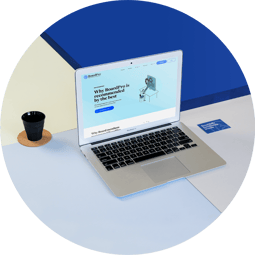
Meeting agenda builder
Creating your board meeting agenda has never been easier with BoardPro. It is one of the most important tasks undertaken by a board administrator, however it can be costly and time consuming if you get it wrong.
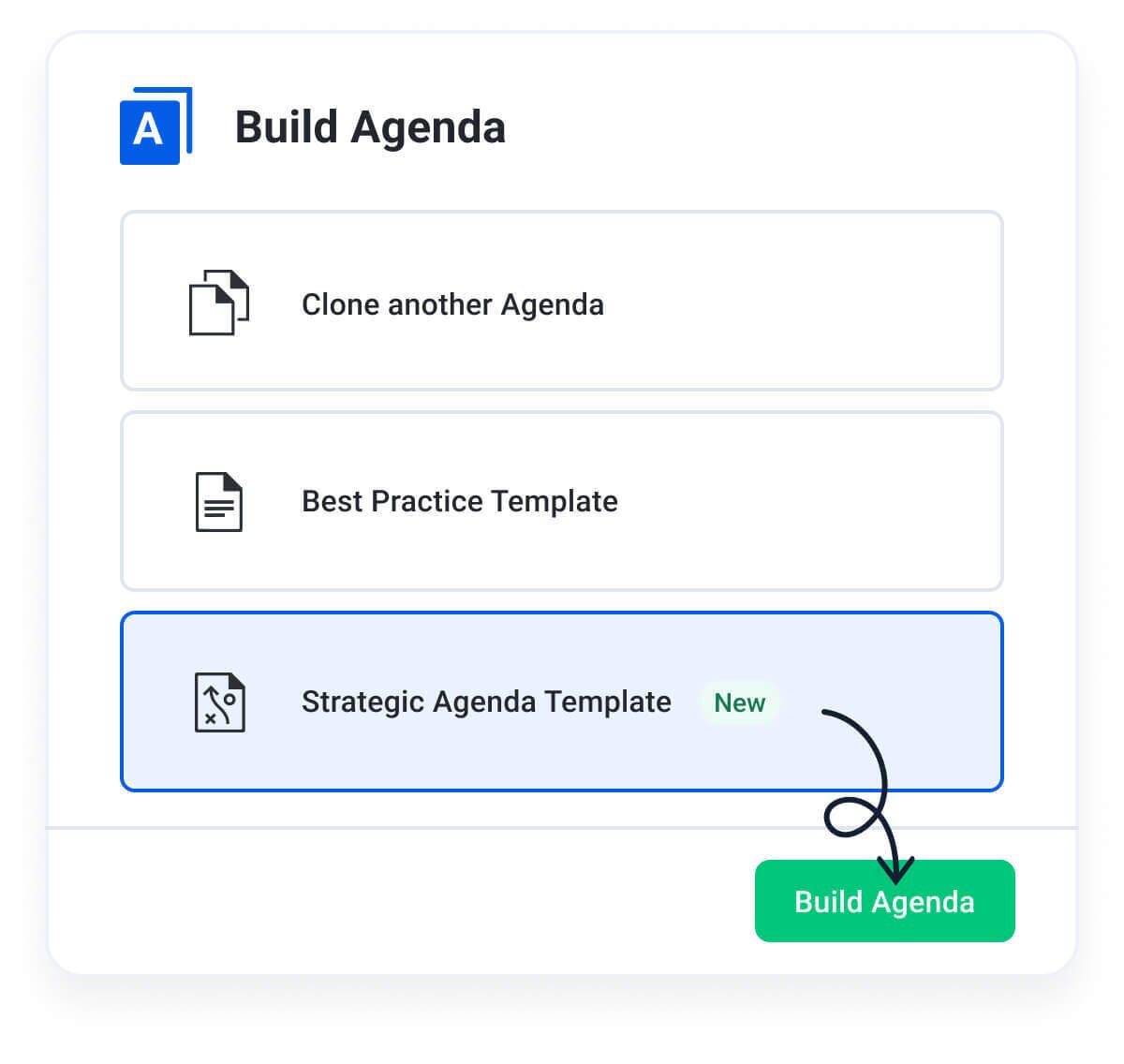
With BoardPro, you can build an agenda by cloning an existing agenda, or use the best practice template.
BoardPro will automate the regular tasks of confirming the minutes, and reviewing the interest register and action list. You're already practicing good governance without even trying!
Build agendas effortlessly
Creating an agenda in BoardPro is effortless and intuitive. And once built simply clone it for the next meeting.
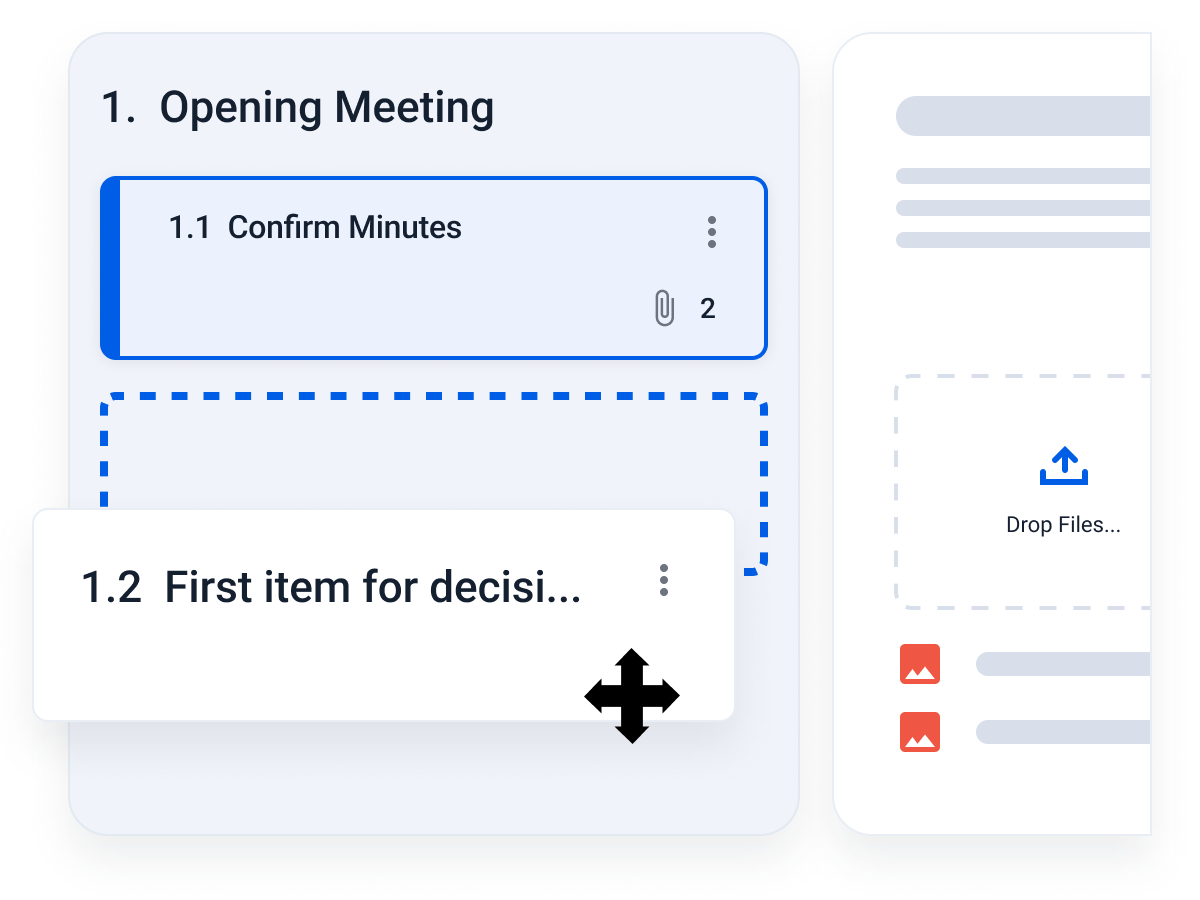
Agenda's are fully customisable; add as many sections and agenda items as required. Need to change the order, or add a new agenda item? Simply drag and drop and watch as they automatically re-number for you.
Give each agenda item a purpose, select a presenter, attach supporting documents, and allocate a time allowance. Then collate into the board pack with a click.
Build from a template, or clone your last agenda
Save time buy cloning an existing agenda, rather than starting from scratch every time. This also allowing you to preserve a consistent format and structure of your agenda across meetings. Then customise the new agenda as needed.
Alternatively you can use one of our purpose-built best practice agenda templates. This is a great option for new boards, or boards with less experience.
Publish and distribute with ease
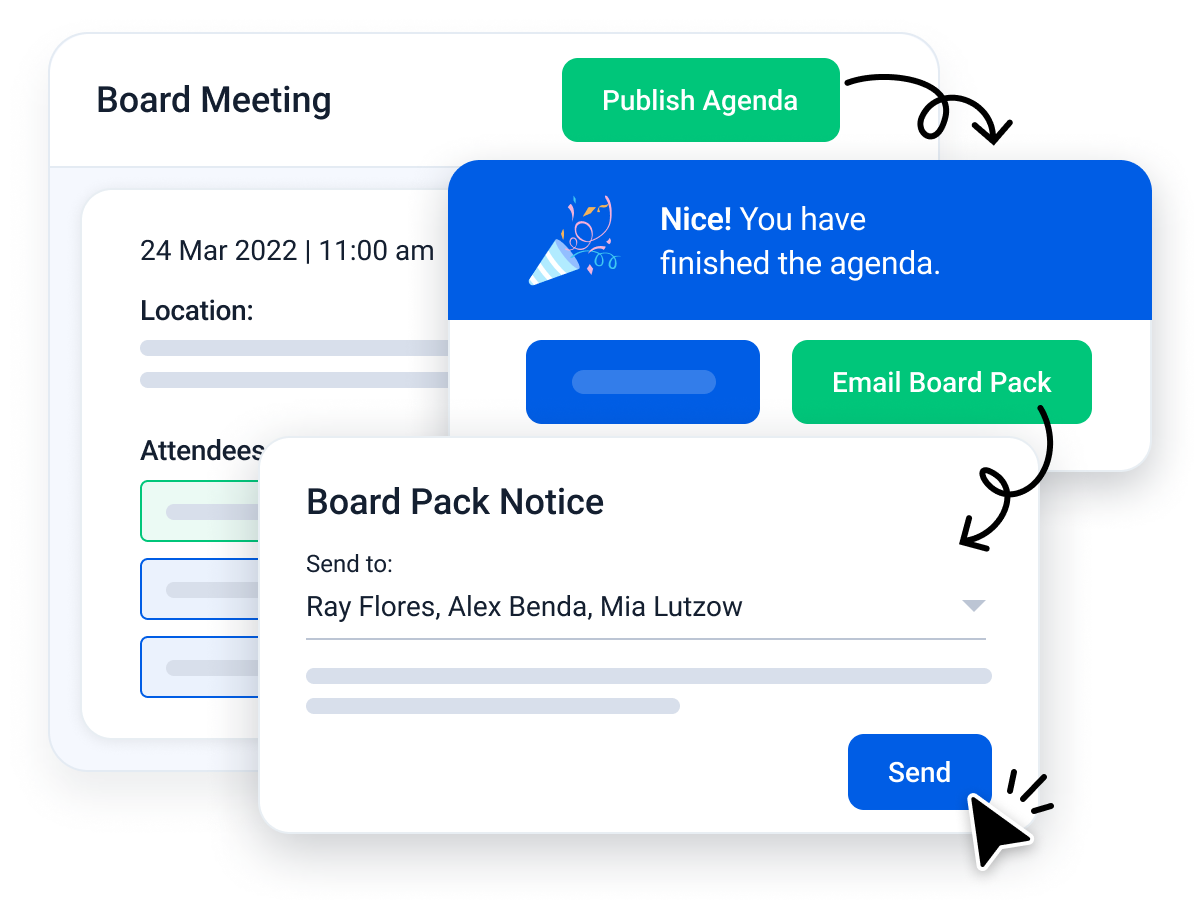
Once the draft agenda is completed simply click publish agenda. BoardPro will then create and format your board pack for you.
You can then securely share your board pack with your board members. They will receive a secure email link and a notification that their board pack is ready. Board members can log into their account any time to read it.
No more insecure email attachments, lengthy email chains, or manual follow ups. Let BoardPro handle your board pack creation and distribution securely and efficiently.
Draft your next agenda in seconds, not hours
Building an agenda from scratch – or even cloning and reshaping last meeting's – eats up time you don't have.
Ask BoardPro AI to draft your next agenda and it pulls from your previous meetings, open actions, and annual work plan to suggest a structured, board-ready agenda with sections, purposes, and time allocations.
Governance-grade, grounded in your board's actual context, and fully editable before you publish. You bring the judgement; AI does the heavy lifting.

We selected BoardPro because it was simple, intuitive, and scalable. We have quite a complicated group structure, lots of boards, committees, and forums flying about. It's made our lives very easy in terms of assembling and communicating documents, adding minutes, tracking actions, recording decisions across our entire group.
David Hosier
Head of Governance and Risk Compliance | Ariel Re

Meeting agendas in BoardPro...
To run an effective board meeting you need to start with a good agenda. Let BoardPro do the heavy lifting for you, so you can focus on preparing for the upcoming meeting. Using BoardPro, you’ll collaborate with other administrators, publish your agenda, and send it out to the board quicker than ever before.
When you add a meeting in BoardPro it will be in the stage, ‘No Agenda’. To get to the next stage, click ‘build agenda’, which moves you to the Draft Agenda. This stage is for administrators to collaborate and build out the agenda before making it available to board members. You can customise the structure of your agenda by adding, reordering, and removing sections and agenda items. Standard agenda items will form the majority of your agenda, and where you can include a purpose, presenter, time allocation and supporting documents for each agenda item. You can also use the smart agenda items, which offer automation to improve meeting cycle efficiency and reduce administrative overhead.
There are three main smart agenda items in BoardPro: Confirm minutes, interests register and action list. ‘Confirm minutes’ automatically includes the minutes from your last meeting into your board pack, for reviewing and confirming at this meeting. Later on in the meeting cycle, you will have a function to confirm these minutes during the minute taking. The ‘Interests register’ dynamically pulls a list of interests from your People section, so you always have the most up to date list of interests for your meetings. The ‘Action list’ is also dynamic, and its purpose is to automate the review of existing actions which were raised in past meetings. You can filter the actions to review in your meetings.
Once you’ve finished drafting your agenda, you can then publish it and consequently build your board pack. This will move you to the published agenda stage, and your pack will now be available to board members. You can notify the board at this stage by sending the board pack notice to your attendees, who will be able to securely view the board pack and meeting agenda.
When the agenda has been published, you can still make changes or add late papers to your board pack easily. Any updates you make will automatically re-number and re-index the rest of the agenda, saving precious administrator time.
FAQs
When an agenda is cloned, the agenda sections and items will be duplicated, as well as the purpose, presenter, and time allocation. You can then customise the rest of the agenda for that particular meeting and upload the documents for that meeting's pack.
No, not automatically. In BoardPro, you are in control of who is notified and when. If you make changes to a published agenda, your board members won’t be notified unless you choose to via an email notification.
Board members can view the agenda at the published agenda stage. Prior to the agenda being published, the meeting is in the draft agenda stage, where administrators, senior executives and the chairperson can collaborate and build out key information before it is made available to the rest of the board.
For the last set of minutes to show as available for confirmation when building your next agenda, the meeting you wish to confirm needs to be in the ‘minutes in review’ stage. Once a meeting is in the minutes in review stage, you will tick a box to include them in the next meeting for review and confirmation.
The final agenda item is the in-built ‘close the meeting’ item. Here, you’ve got the option to select the date of your next meeting and leave any final notes.
If you’ve assigned a time allocation throughout each of your agenda items, the ‘close the meeting’ item will also suggest a meeting end time based on the sum of these individual times.