Summary
- Teams meeting transcription creates a written record of the meeting with each speaker's name and a timestamp, in real time.
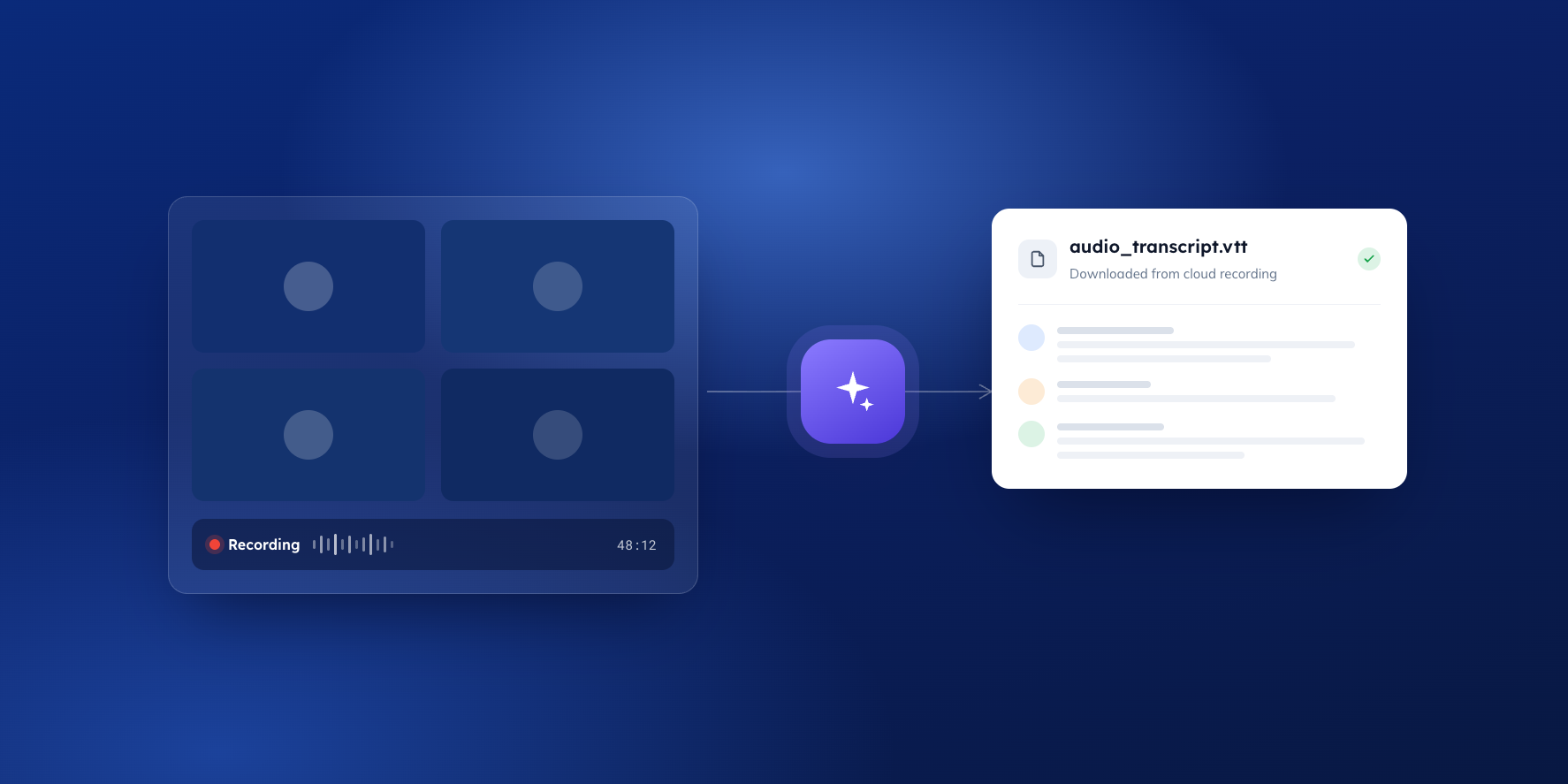
- Start it from More actions > Record and transcribe > Start transcription – or simply record the meeting, which starts transcription automatically.
- Your IT admin must have transcription enabled, and by default only the organiser and co-organisers can download the finished transcript.
- The transcript downloads as a .docx or .vtt file from the Recap tab or the calendar event, and is stored in the organiser's OneDrive.
- Transcripts expire under your organisation's retention settings, so download the file as soon as possible after the meeting.
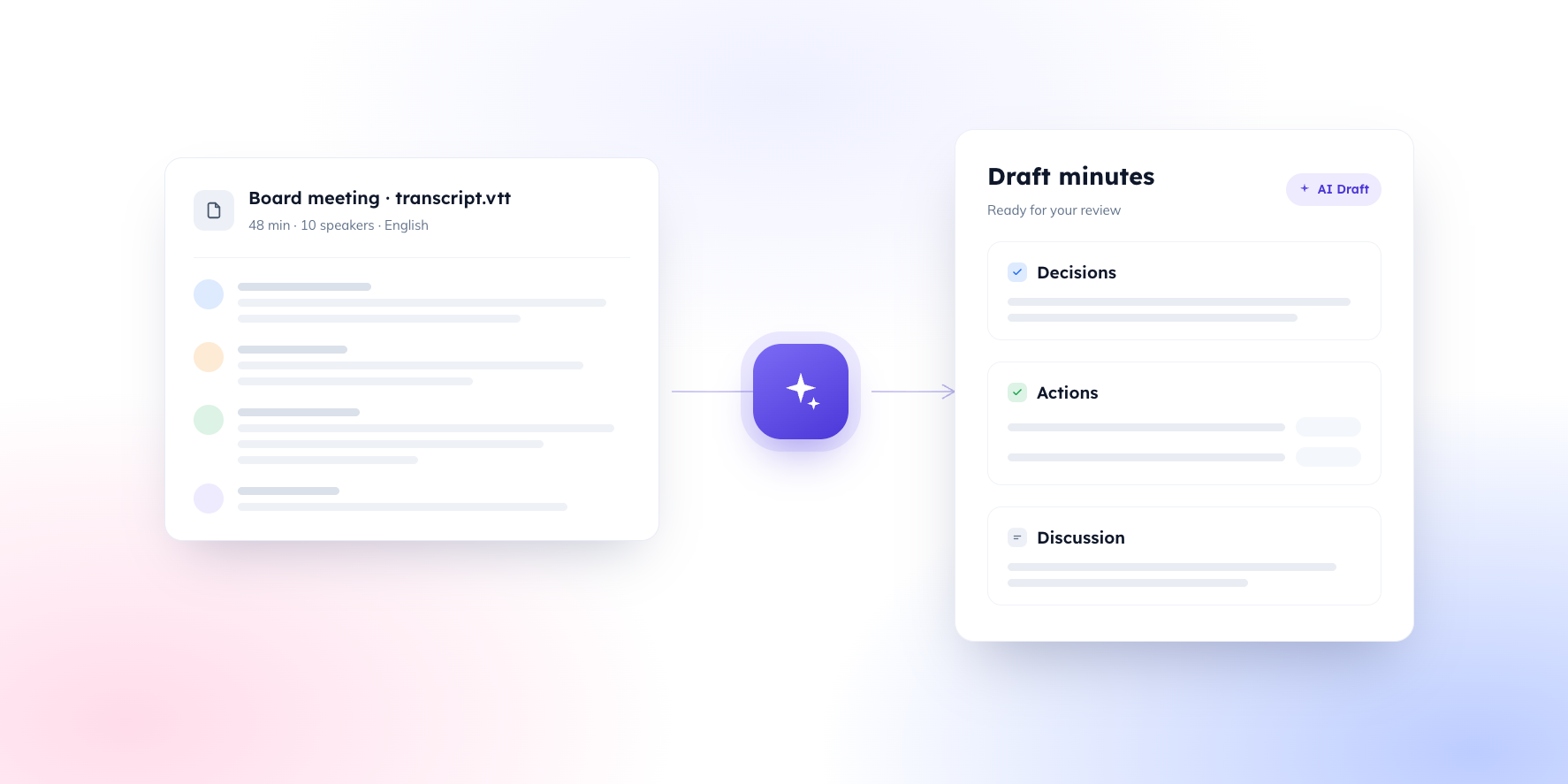
- Once downloaded, upload the file to BoardPro, and AI Minutes will draft your board minutes for you to review, edit, and approve.
What you'll learn
If your board meets on Microsoft Teams, you're closer to automated minute-drafting than you might think. Teams meeting transcription is built in, it names each speaker, and the output downloads as a Word document – but the feature depends on admin settings and meeting roles that trip people up, usually at the exact moment the meeting is about to start.
This article covers how to transcribe an MS Teams meeting from start to finish: what to check before the meeting, how to start the transcript, where the file ends up, and how to turn it into draft board minutes.
What Teams meeting transcription gives you
When transcription is running, Teams captures everything said in the meeting as text, in real time, with each speaker's name and a timestamp against every line. Participants can view the live transcript during the meeting, and the full transcript is available afterwards from the meeting chat and the Recap tab.
For minute-takers, the named attribution is the valuable part. A transcript that records who made a point, moved a motion, or accepted an action is dramatically more useful than a wall of unattributed text – and it's what lets AI tools assign action owners correctly later.
Before the meeting: three things to check
Transcription isn't on by default in every organisation. Three things need to line up:
- Admin policy. Your IT admin must have transcription allowed in the Teams admin centre (it's a meeting policy setting). If the Start transcription option is missing or greyed out for everyone, this is why.
- Licence. Transcription is included in the paid Microsoft 365 business and enterprise plans. You don't need Teams Premium or Copilot for a standard transcript.
- Your role. The organiser, co-organisers, and presenters can start transcription; ordinary attendees generally can't. If someone other than the organiser takes the minutes – common when a board secretary supports the chair – make them a co-organiser when the meeting is scheduled. That also gives them download rights afterwards, which matters more than people expect.
Worth confirming the week before the board meeting, not the minute before. A quick test call with a colleague takes five minutes and surfaces all three potential issues.
How to transcribe a Teams meeting
- In the meeting, select More actions (…) in the meeting controls.
- Select Record and transcribe, then Start transcription.
- Confirm the spoken language – the language everyone will be speaking in the meeting.
If you record the meeting, transcription starts automatically – you don't need to do both. Either way, every participant sees a notification that the meeting is being transcribed, and for a board meeting, it's good practice for the chair to note it at the start.
Transcription stops automatically when everyone leaves the meeting. During the meeting itself, the habits that improve the output are the same as for any recording: one speaker at a time, and names said aloud when actions are assigned.
After the meeting: find and download the transcript
The transcript is available almost immediately after the meeting ends. To get a transcript of a Teams meeting you've just held:
- Open the meeting in your Teams Calendar (or open the past meeting's chat).
- Select the Recap tab (in some tenants it appears as Recording & Transcripts).
- Select Transcript, then the dropdown arrow next to Download, and choose .docx or .vtt. Both work; however, .docx is easier to skim and tidy up.
Two access points to know about. First, by default only the organiser and co-organisers see the Download button – other participants can view the transcript but not save it, which is exactly why the minute-taker should be a co-organiser. Second, the transcript lives in the organiser's OneDrive, and recordings and transcripts expire under your organisation's Microsoft 365 retention settings – often set to 120 days. Download the file as part of your post-meeting routine rather than assuming it will be there at year-end.
Getting speaker names right
Directors who join the meeting signed in under their own accounts are named automatically in the transcript. The gaps appear at the edges: external guests may not be attributed cleanly, participants can choose to hide their identity in captions and transcripts, and – the big one for boards – several people sharing one meeting-room device all come through as the room, not as individuals.
Microsoft's answer to the meeting-room problem is Teams Rooms with speaker recognition, which can name individual in-room voices – but it involves specific licensing, hardware, and enrolled voice profiles, so treat it as an IT project rather than a setting. The zero-cost alternative works well in practice: a round-the-table introduction at the start of the meeting, and a chair who names people as they speak. The transcript then carries the attribution even where the audio can't.
For hybrid and in-person capture in more depth, see our help centre guide: Getting a great transcript for AI Minutes
From Teams transcript to board minutes
The transcript records everything that was said. Minutes record what the board noted, decided, and agreed to do – selectively, in the board's own style, with the legal weight a transcript doesn't carry. Turning one into the other has traditionally been the most time-consuming part of the board cycle.
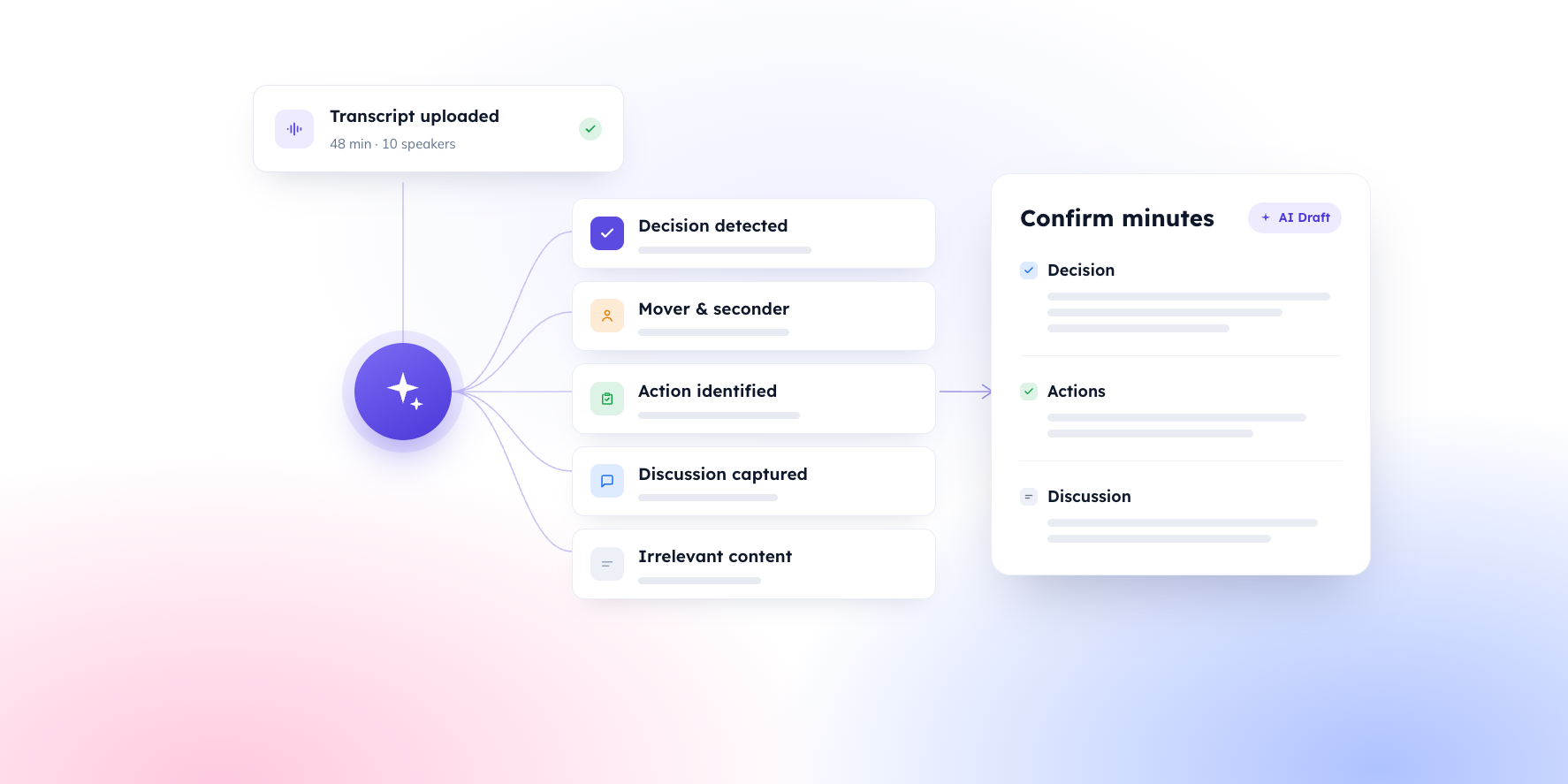
If your board runs on BoardPro, upload the downloaded .docx or .vtt file to the meeting, and AI Minutes reads the transcript against your agenda to produce structured draft minutes. This includes discussion notes by topic, actions with owners and due dates, and decisions with movers and seconders where stated. You review, edit, and approve before anything is published; the AI drafts, and you own the record.
One Teams-specific convenience: Teams creates a separate transcript for each recording segment, so a meeting that was paused and restarted produces several files. Upload all of them to the same meeting in BoardPro – they're stitched together in order and generate one set of minutes. And once your minutes are generated, the transcript files are deleted from BoardPro's storage; your content is never used to train AI models.
See how it works: AI Minutes
FAQs
How do I get a transcript of a Teams meeting that's already happened?
If transcription or recording was running, open the meeting in your Teams calendar, go to the Recap tab, and download the transcript as .docx or .vtt (you'll need to be the organiser or a co-organiser, or ask them to download it for you). If transcription was never started, Teams has nothing to retrieve – it can't transcribe after the fact. If a recording exists without a transcript, you can run the video through a transcription tool and use that output instead.
Does recording a Teams meeting create a transcript automatically?
Yes. When you record a meeting, transcription starts automatically – provided your admin has transcription enabled. You'll find the transcript alongside the recording in the Recap tab afterwards.
Why can't I see the Download button on the transcript?
By default only the meeting organiser and co-organisers can download; everyone else can only view. Either ask the organiser to download the file, or – the better fix for a standing board meeting – have the minute-taker added as a co-organiser in the meeting invite from now on. In some organisations, admins have also restricted downloads at the policy level.
Do we need Teams Premium or Copilot to transcribe meetings?
No. Standard transcription – the full who-said-what record with names and timestamps – is included in paid Microsoft 365 business plans. Teams Premium adds extras like live translated transcripts, and Copilot adds AI summaries of the discussion. Neither produces board minutes; for that you need the transcript plus a tool that understands agendas, resolutions, and actions.
Our board meets in person – can Teams still transcribe it?
Not well, unless you invest in Teams Rooms hardware with speaker recognition. A laptop in the room joined to a Teams call will capture the audio, but everyone in the room is attributed to one source. For in-person meetings, a tool that separates speakers from a single recording (or a disciplined round of name introductions) gives you a more usable transcript – our transcript guide covers the options.
Resources for your board
When you're ready here's how BoardPro can help