Summary
- Most video conferencing tools can already produce a transcript of your board meeting. The gap is what happens next: a transcript is a wall of text, and minutes are a governance record.
- AI Minutes takes the transcript you already have and drafts structured minutes mapped to your agenda – discussion notes, actions with owners and due dates, and formal decisions with movers and seconders.
- Nothing is published without you. The draft lands in the standard BoardPro minutes editor, where you review, edit, and approve every line before the minutes go anywhere.
- The AI cross-references your board papers to get names, acronyms, and figures right, and your transcript is deleted from BoardPro's storage once processing is complete.
- The result is a first draft in minutes – and not a Monday lost to typing.
What you'll learn
If you take the minutes for a board – as the board secretary, an executive assistant, or the administrator who holds the whole meeting cycle together – you'll know what the day after a meeting looks like. A recording or a rough set of notes on one screen, a blank minutes document on the other, and four to eight hours of careful reconstruction ahead of you before the draft is ready for the chair.
The frustrating part is that the raw material already exists. Teams, Zoom, and most other conferencing tools will hand you a full transcript of the meeting at the click of a button. What they won't hand you is minutes. Converting a meeting transcript to minutes – deciding what was discussion, what was a decision, and who agreed to do what by when – is where the hours go.
This article covers how BoardPro's AI Minutes closes that gap: how to create meeting minutes from a transcript, what the AI produces, and where you stay in control.
Why a transcript isn't minutes
A transcript records everything that was said, in the order it was said. Minutes record what the board needs: what was considered, what was decided, and what happens next. Those are different documents doing different jobs, and turning one into the other is skilled work, not typing.
Generic transcription tools stop at the first document. They'll give you a summary, and sometimes a list of "action items," but the output doesn't follow your agenda, doesn't distinguish a passing comment from a formal resolution, and doesn't know that the motion on item six needs a mover and a seconder recorded. You end up restructuring the whole thing by hand – which is the work you were trying to avoid.
AI Minutes is built for the second document. It reads the transcript against the agenda you've already built in BoardPro and drafts minutes that are structured the way a board record should be.
How to create meeting minutes from a transcript in BoardPro
The workflow has four steps, and only one of them is new.
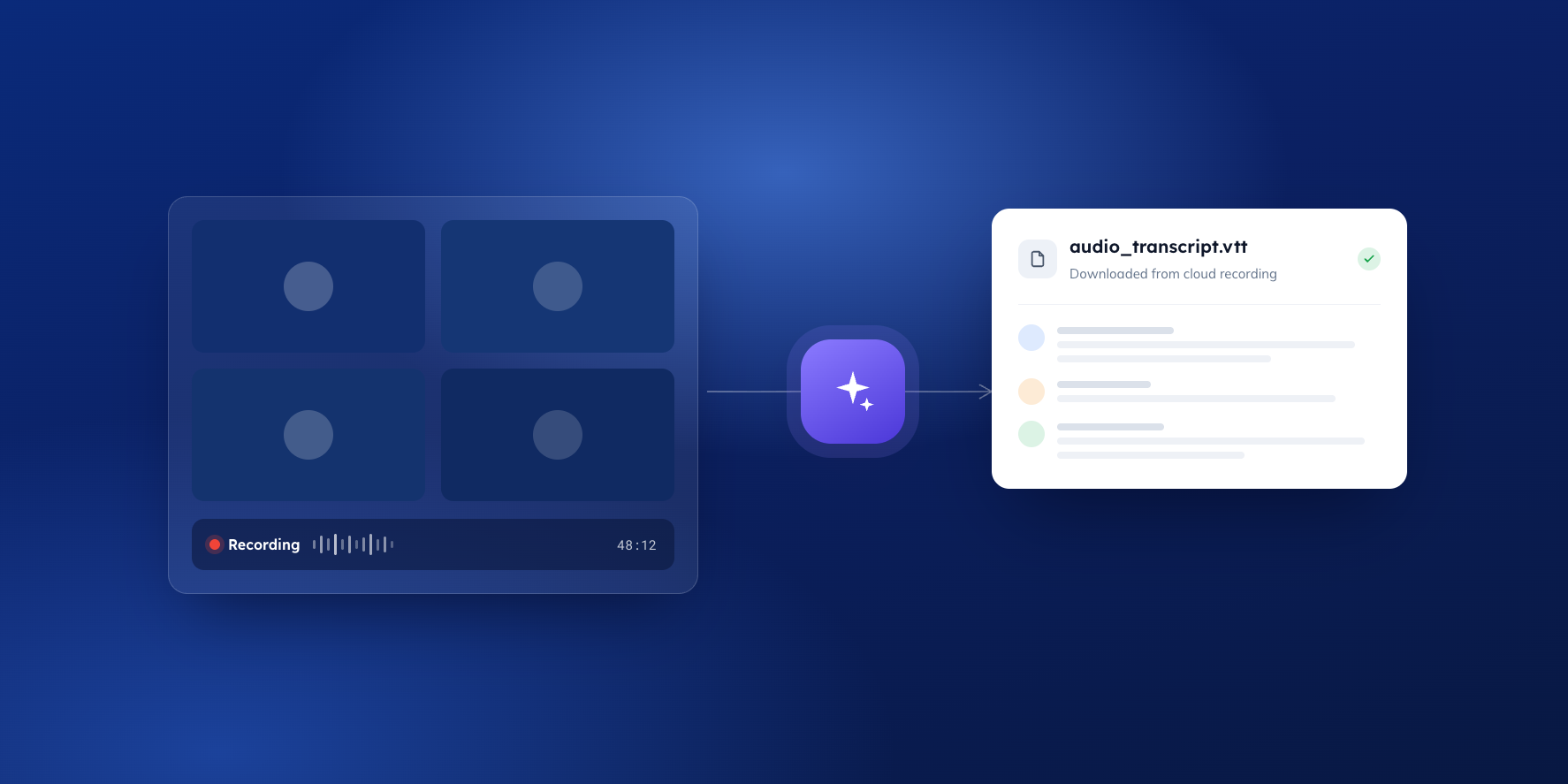
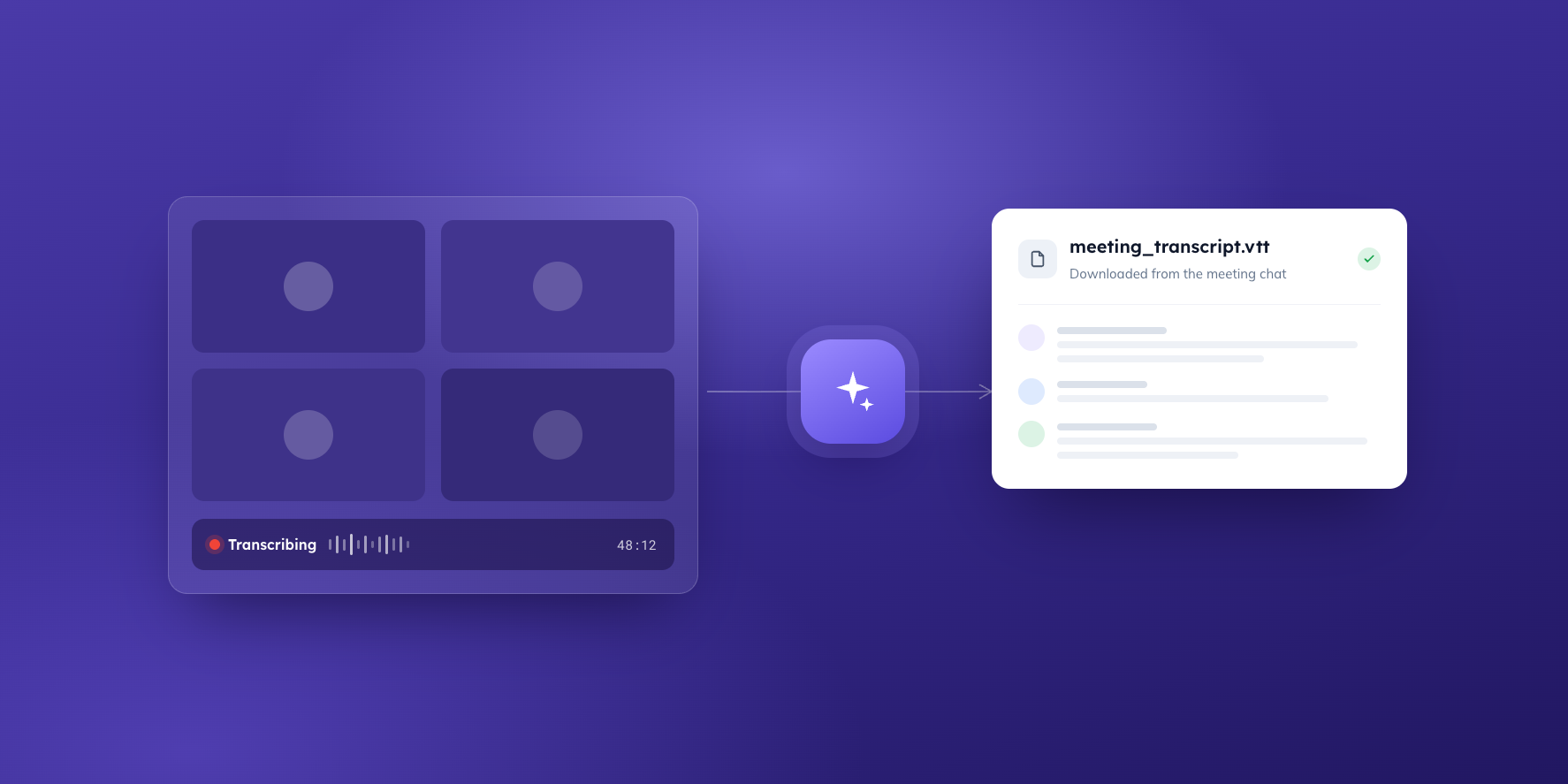
- Record the meeting as you normally would. Use your existing conferencing tool – Zoom, Teams, or whatever your board runs on – and download the transcript file afterwards. BoardPro doesn't record the meeting; you stay in control of what's captured and what's shared.
- Upload the transcript to your BoardPro meeting. Open the meeting in BoardPro (the one with the agenda you built before the meeting), select Import Transcript, and upload the transcript file. Most common file formats are accepted, so whatever your conferencing tool exports will almost certainly work as-is.
- Let the AI draft the minutes. BoardPro reads the full transcript, maps it against your agenda structure and any papers attached to the meeting, and generates draft minutes for each agenda item that was discussed.
- Review, edit, and publish. The draft opens in the standard BoardPro minutes editor – the same one you'd use if you were writing minutes from scratch. Edit, add, remove, or rearrange anything, then confirm and publish exactly as you always have.
That's the whole process. No new software to learn for the meeting itself, no copying and pasting between tools, and no change to how minutes are approved and distributed once you're happy with them.
What lands in the draft: notes, actions, and decisions
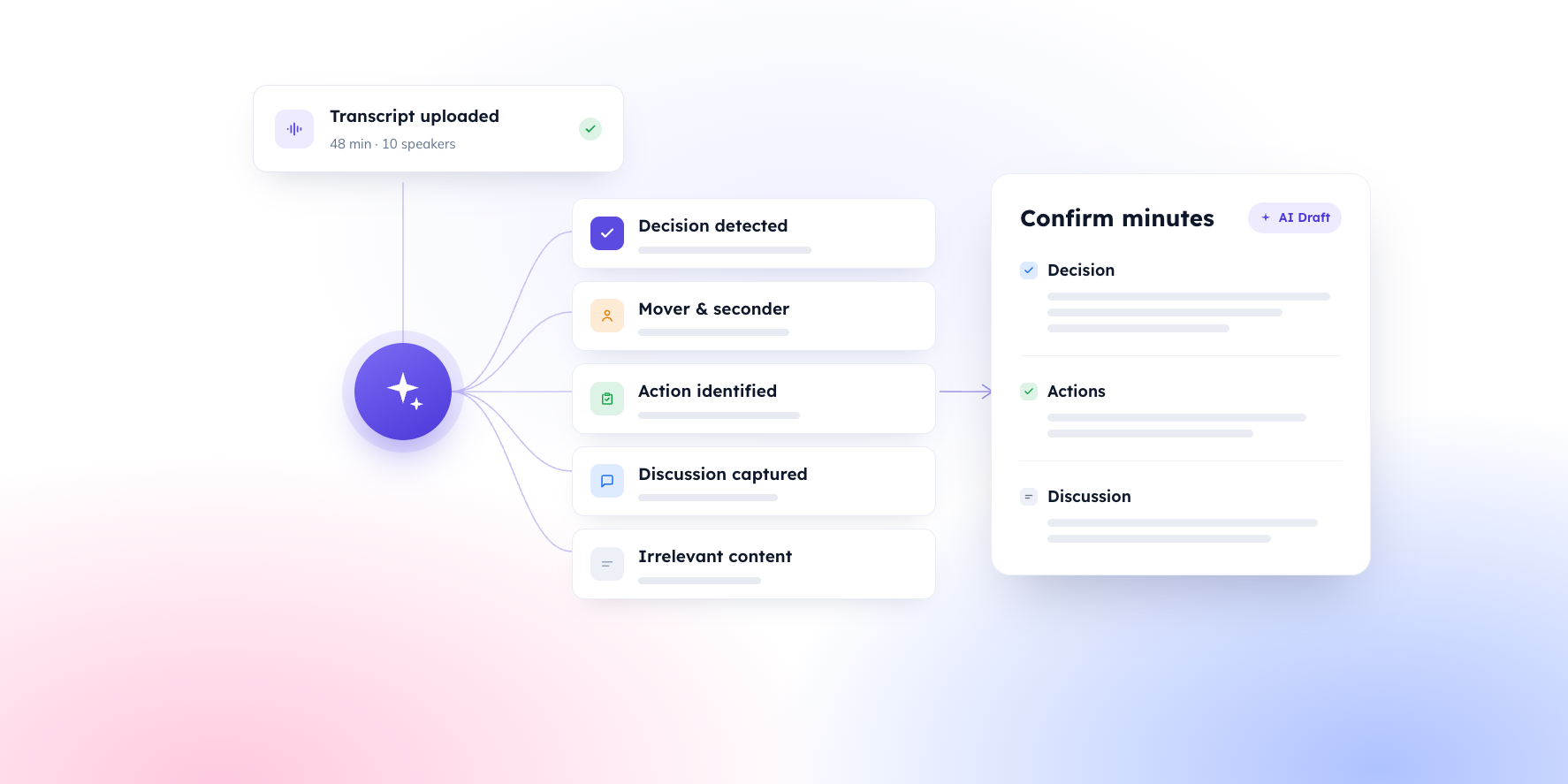
For each agenda item discussed, the AI drafts three kinds of minute – the same three kinds a careful minute-taker produces by hand.
- Notes capture the discussion, separated by topic. If the finance item covered revenue performance and then expense analysis, each gets its own note rather than one merged block.
- Actions capture the tasks people took on, with owners matched to the meeting's attendee list and due dates converted from the way people actually speak. "I'll have it to you by next Friday" becomes an action with a real date attached.
- Decisions capture the formal business: motions, votes, approvals, and resolutions, with the outcome, mover, and seconder recorded where they were stated.
If an agenda item wasn't discussed, nothing is invented for it. The draft reflects the meeting that actually happened, which is what a defensible board record requires.
How the AI gets the details right
Anyone who has tried minutes transcription with a generic tool knows where it falls over: names, acronyms, and figures. A misheard acronym or a garbled surname takes longer to hunt down and fix than it would have taken to type the sentence yourself.
AI Minutes handles this differently because it can see more than the transcript. When your meeting has papers attached to agenda items – board reports, financials, proposals – the AI uses them as a reference layer. If the transcript garbles an acronym or a technical term that appears correctly in the board pack, the draft uses the correct version. Accuracy improves because the AI knows what your board was actually discussing.
Papers aren't required – AI Minutes works from the transcript alone – but if your board pack lives in BoardPro already, the draft gets better for free.
You review the draft. You own the record.
Minutes are a legal record, and accountability for what they say sits with people, not software. AI Minutes is built around that principle: the AI drafts, and you own the record.
Every generated minute is identified in the editor and can be edited, approved, or removed before anything is published. You keep full control over framing – the wording that matters for auditors, regulators, or a politically delicate discussion – and nothing reaches the board until you've signed it off. In practice, the AI gives you roughly a 90 per cent head start; your judgement covers the part that actually requires judgement.
That's a deliberate design choice, not a limitation. A tool that published minutes without human review would be a governance risk, not a governance product.
Where your transcript goes
Board discussions are among the most sensitive conversations in any organisation, so it's worth being precise about what happens to the file you upload.
The transcript is processed securely through Azure OpenAI, with contractual guarantees that your content is never used to train or fine-tune any AI models. Transcript files you upload are deleted from BoardPro's storage within 24 hours of upload. Everything stays inside your BoardPro environment, with the AI only able to access content you already have permission to view.
Compare that with pasting a board transcript into a free consumer AI tool, where the terms around data retention and training are often unclear. For a board record, the difference matters.
Recording in Zoom or Teams?
The workflow above is the same regardless of which conferencing platform your board uses – record, download the transcript, upload it to BoardPro. But each platform has its own quirks around where transcripts live, how to switch transcription on, and how to make sure speaker names come through.
We've covered the platform-specific detail separately:
And if your board meets in person or hybrid, our help centre guide on getting a great transcript for AI Minutes covers capture options for the room itself.
FAQs
What file format does my transcript need to be in?
Almost any common format your conferencing tool exports – including .vtt, .srt, .txt, .docx, and .pdf – will work. Download the transcript the way your platform provides it and upload it as-is. If you want to fine-tune your transcript setup, the help centre guide above covers the details.
Do I need to attach board papers for it to work?
No. AI Minutes generates the draft from the transcript alone. Attaching papers improves accuracy – the AI uses them to correct misheard names, acronyms, and technical terms – so if your board pack is already in BoardPro, you get that benefit automatically.
Can I trust AI-generated minutes to be accurate?
Treat the output the way you'd treat a competent first draft from a colleague: strong, but yours to verify. Every minute is reviewed by you before publication, and nothing is published automatically. The review step exists precisely because minutes carry fiduciary weight – the AI shortens the drafting, it doesn't replace your judgement.
My meeting recording was split into several files – can I still use AI Minutes?
Yes. Some conferencing tools (Teams, for example) create a separate transcript for each part of a recording. Upload all of them to the same meeting, and BoardPro stitches them together in order and generates one set of minutes. You don't need to combine the files yourself first.
You can add transcripts at any point, including after minutes have started generating, and you can delete a file you uploaded by mistake before generating.
Does BoardPro record my board meeting?
No. BoardPro never records anything. You record the meeting with your own conferencing tool, and BoardPro only processes the transcript you choose to upload.
Resources for your board
When you're ready here's how BoardPro can help
- New to BoardPro? Start a free trial to see how AI Minutes works with your board's own meetings.
- Book a demo – see BoardPro in action in this 30-minute demo. Book here.