Summary
- Zoom generates a transcript of a meeting automatically, but only for cloud recordings, and only if the Create audio transcript setting was on before the meeting started.
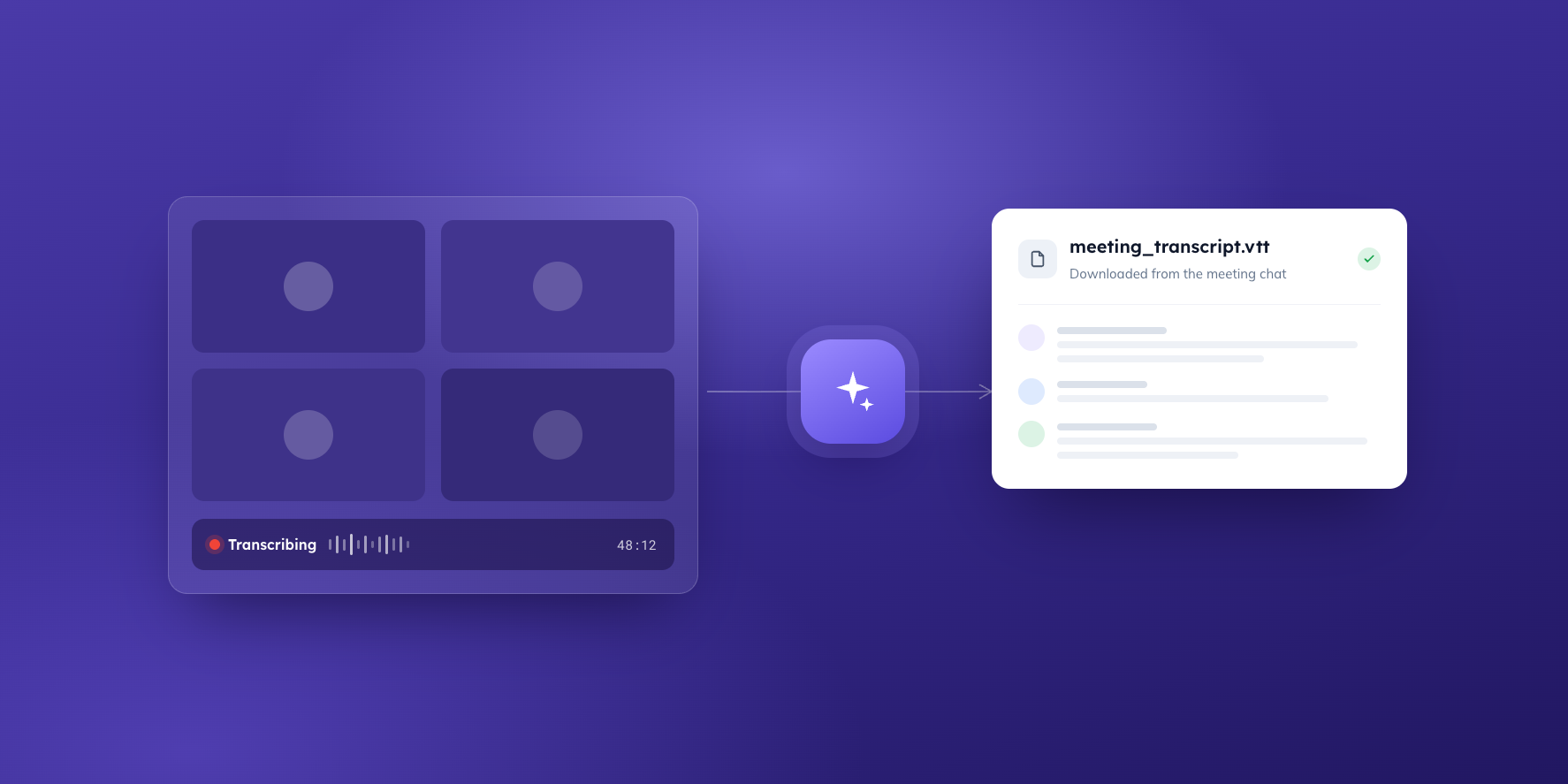
- The transcript downloads as a .vtt file with timestamps and speaker names; you can correct names and wording in the Zoom web portal before you download it.
- Local recordings (saved to your computer) don't produce a downloadable transcript, which catches a lot of minute-takers out.
- Participants who join signed in to Zoom are named in the transcript; guests can appear as “Unknown Speaker”, and several people sharing one room device come through as a single voice.
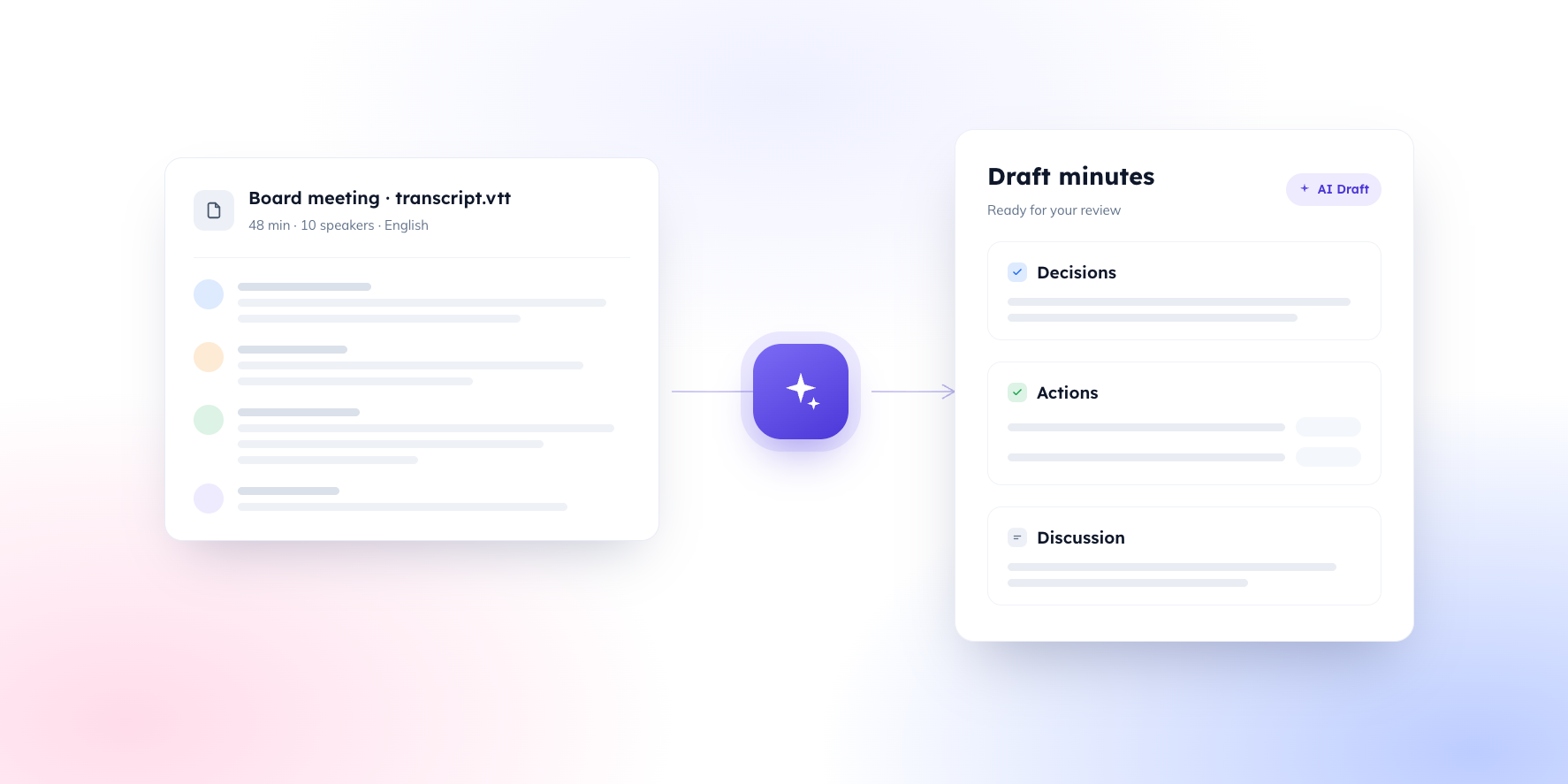
- Once you have the .vtt file, you can upload it to BoardPro, and AI Minutes will use it to draft your board minutes for you to review, edit, and approve.
What you'll learn
If you take minutes for a board that meets on Zoom, the recording is the easy part. The transcript is where it gets fiddly: Zoom does produce one, but only under specific settings, and the file isn't where most people first look for it.
This article walks through how to get the transcript of a Zoom meeting from start to finish – the settings to switch on beforehand, where the file lives afterwards, and how to turn it into draft board minutes rather than a wall of text.
Can you get a transcript from a Zoom meeting?
Yes, provided two things are true. The meeting must be recorded to the cloud (not to your computer), and the Create audio transcript setting must be switched on in your Zoom account before the meeting starts. When both are in place, Zoom processes a transcript of the meeting alongside the recording and saves it as a separate .vtt file.
The setting is not retrospective. If it was off when you recorded, Zoom can't generate a transcript for that recording later – so it's worth setting up now, before your next board meeting, rather than discovering the gap afterwards.
Cloud recording requires a paid Zoom plan, and on many organisational accounts the recording settings are controlled by an administrator. If you don't see the options described below, that's the first place to check.
Before the meeting: turn on audio transcripts
Do this once and it applies to every future cloud recording:
- Sign in to the Zoom web portal (zoom.us in a browser – the settings you need aren't in the desktop app).
- Go Settings and open the Recording tab.
- Make sure Cloud recording is on.
- Under Advanced cloud recording settings, make sure Create audio transcript is ticked.
- Click Save.
If the checkbox is greyed out or missing, your account admin has locked the recording settings. Ask them to enable audio transcripts – it's a standard setting, and for a board that relies on the transcript for minutes, a reasonable request.
During the meeting: record to the cloud
When the meeting starts, click Record and choose Record to the Cloud. If you record to your computer instead, you'll get a video file but no transcript, and there's no way to convert one into the other inside Zoom afterwards.
Two habits during the meeting make a noticeable difference to what comes out the other end. One speaker at a time – overlapping voices are the single biggest cause of garbled transcripts. And use names out loud when actions are assigned: “Ravi will circulate the revised budget by Friday” lands in the minutes with the right owner; “can you sort that out?” doesn't.
After the meeting: find and download the transcript
Zoom processes the recording and transcript after the meeting ends. For a typical board meeting allow anywhere from several minutes to a few hours; Zoom emails you when the files are ready. Then:
- Sign in to the Zoom web portal and open Recordings & Transcripts.
- Open the meeting from the Cloud recordings list.
- You'll see the video and audio files, plus a separate Audio transcript file. Click the download icon next to it to save the .vtt file.
Before downloading, it's worth playing the recording in the web portal for a minute or two. The transcript displays beside the video, and hovering over any line shows a pencil icon that lets you correct wording or speaker names. Fixing any obvious mislabelling here – particularly around a resolution or an assigned action – saves editing later.
The .vtt file itself is plain text. You can open it in Word or any text editor if you want to read it, but you don't need to convert it: it uploads as-is.
Getting speaker names right
A Zoom transcript of a meeting attributes each line to a speaker, and the quality of that attribution depends on how people joined. Participants signed in to their own Zoom accounts are named. Guests who join from a browser link without signing in can appear as “Unknown Speaker”. And where several directors share one device in a meeting room, Zoom hears one audio source – it can't tell them apart.
Names matter more than they might seem. When the transcript names a person, downstream tools (including BoardPro's AI Minutes) can assign actions to the right director automatically. Three practical fixes: ask directors to join signed in under their own names; correct any “Unknown Speaker” labels in the web portal before downloading; and for hybrid meetings, have the chair name people as they speak (“thanks, Jane – over to you, Ravi”), so the record carries the attribution even where the audio can't.
For in-person and hybrid capture in more depth – microphone placement, room setups, and which tools label speakers – see our help centre guide: Getting a great transcript for AI Minutes
From Zoom transcript to board minutes
A transcript is a record of everything said. Minutes are a selective, structured record of what the board noted, decided, and agreed to do – and turning one into the other is where the hours usually go.
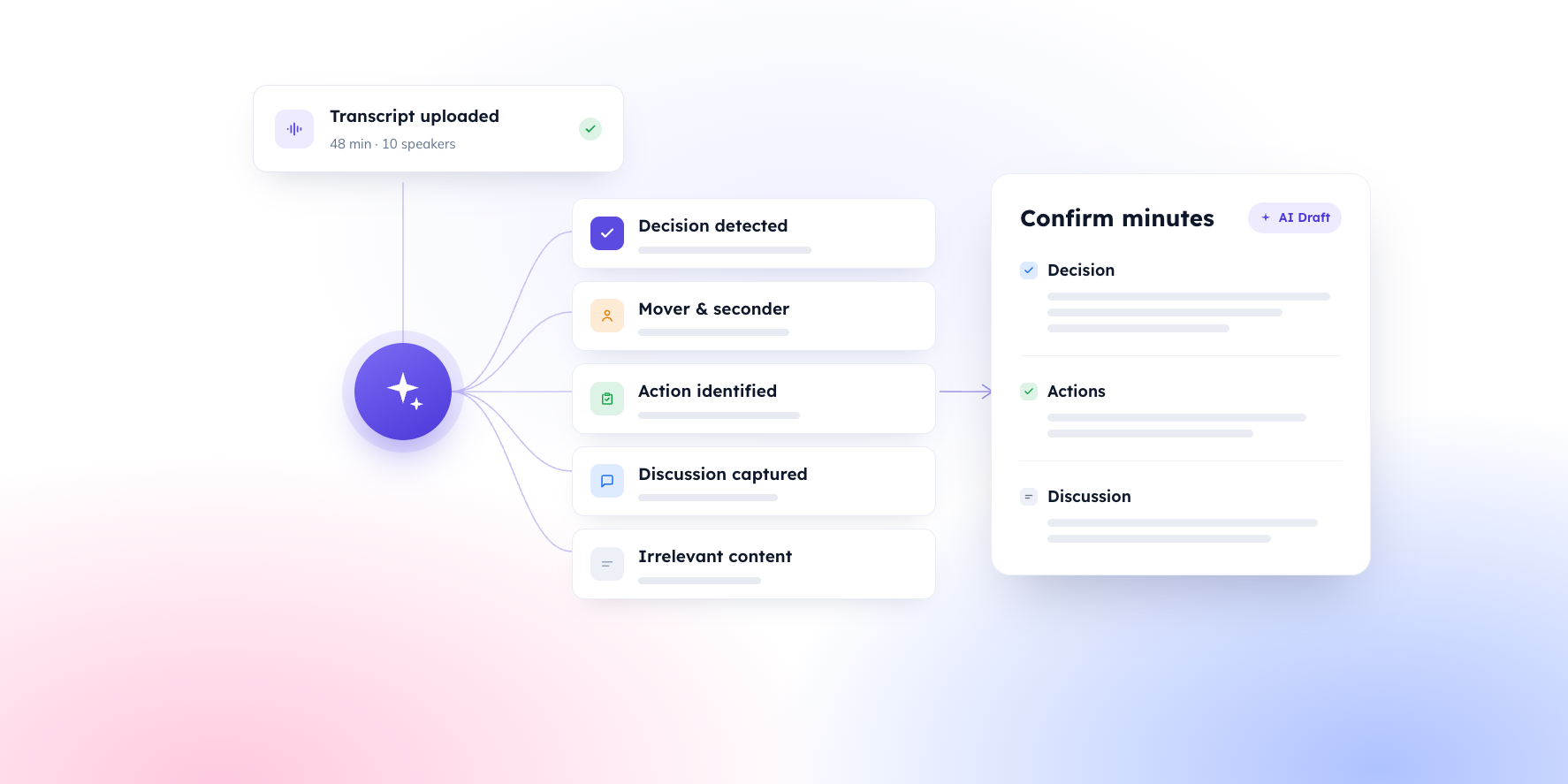
If your board runs on BoardPro, that step is now largely drafted for you. Upload the .vtt file to the meeting in BoardPro, and AI Minutes reads the transcript against your agenda and produces structured draft minutes. This includes discussion notes by topic, actions with owners and due dates, and decisions with movers and seconders where they were stated. You review, edit, and approve before anything is published; the AI drafts, and you own the record.
The transcript file is deleted from BoardPro's storage once your minutes are generated, and your content is never used to train AI models.
See how it works: AI Minutes
FAQs
Can you get a transcript from a Zoom recording after the meeting has ended?
Only if Create audio transcript was turned on when the meeting was recorded to the cloud – in that case the transcript is waiting in the web portal with the recording. Zoom won't retroactively transcribe a recording made without the setting. If all you have is the video or audio file, you can run it through a transcription tool (Otter and Fireflies both accept uploaded files) and use that transcript instead.
What file format is the Zoom transcript, and will BoardPro accept it?
Zoom transcripts are .vtt files, which BoardPro accepts directly. AI Minutes also accepts .txt, .docx, .srt, .pdf, and most other common formats if your transcript comes from somewhere else.
Why is there no transcript with my recording?
The usual causes, in order: the meeting was recorded on your device’s local drive rather than to the cloud; Create audio transcript was off when the meeting ran; the transcript is still processing (it can lag the video by a few hours); or your account admin has the feature disabled. Only the first recording made after the setting is switched on will have a transcript.
Do participants know the meeting is being recorded and transcribed?
Yes – Zoom notifies participants that recording has started, and depending on account settings may ask for consent to continue. For a board meeting it's good practice for the chair to note the recording at the start regardless, and for the minutes to record that the meeting was recorded for minute-taking purposes.
Is a long meeting split across several recordings a problem?
Not for BoardPro. If a recording was paused and restarted, or the meeting produced more than one transcript file, upload all of them to the same meeting – BoardPro stitches them together in order and generates a single set of minutes.
Resources for your board
When you're ready here's how BoardPro can help